


Key Takeaway
- Sales reps spend only 40% of their time actually selling, and 13% of their week on manual data entry, according to Salesforce’s State of Sales 7th Edition.
- Salesforce for Outlook is scheduled to retire in December 2027. Salesforce’s replacement combines Outlook Integration for the inbox experience with Einstein Activity Capture for automatic activity sync.
- Native tools are free with most editions, but Einstein Activity Capture stores data off-platform with a 24-month retention cap unless you enable the new “Sync Email as Salesforce Activity” feature.
- Third-party tools like Revenue Grid earn their place when you need custom object sync, indefinite retention, or compliance controls native tools cannot deliver.
- The right setup depends on three things: your Salesforce edition, your email client, and how much governance your industry demands.
What replaced Salesforce for Outlook?
Salesforce for Outlook is scheduled to retire in December, 2027. Salesforce’s official replacement combines two products: Outlook Integration, which gives users access to Salesforce records and features from the Outlook side panel, and Einstein Activity Capture, which handles automatic email, contact, and calendar activity capture and sync.
For teams that need more control over how activity is captured and stored, Revenue Grid covers both roles in one integration. It adds configurable capture rules, custom-object support, shared and delegated calendar sync, and long-term activity history inside Salesforce.
Salesforce email and calendar product retirement timeline
| Product | Retirement | Salesforce replacement |
| Salesforce Inbox mobile app | Retired February 1, 2024 | Outlook/Gmail Integration with Inbox for desktop, Salesforce mobile app for CRM access, and EAC for automatic activity capture |
| Salesforce for Outlook | December, 2027 | Outlook Integration + Einstein Activity Capture |
| Lightning Sync | April 1, 2027 | Einstein Activity Capture |
Salesforce Inbox itself has not disappeared entirely. The mobile app was retired; Inbox functionality continues through Salesforce’s current Outlook and Gmail integrations.
Outlook Integration vs. Einstein Activity Capture vs. Revenue Grid
| Capability | Outlook Integration | Einstein Activity Capture | Revenue Grid |
| Salesforce access from the inbox | Yes | No dedicated side panel | Yes |
| Automatic background activity sync | Not by itself | Yes | Yes |
| Two-way calendar sync | Not by itself | Supported, depending on configuration | Yes |
| Shared/delegated calendar support | Limited shared-folder support | Primarily syncs the user’s default calendar | Yes, including shared and delegated calendars |
| Salesforce-native activity records | Yes for manually logged activity | Yes with current Sync Email as Salesforce Activity architecture | Yes |
| Custom-object activity linking | Limited | Standard EAC matching focuses on supported Salesforce records | Yes |
| Retention | Follows Salesforce storage for logged records | Native synced records follow Salesforce storage; legacy Activity Platform data has license-based retention | Activity remains in Salesforce without an EAC-style rolling retention window |
Revenue Grid is the better fit when the native Salesforce combination does not cover the workflow you need, particularly around delegated calendars, custom objects, configurable capture, and long-term activity history.
Reps spend more time updating Salesforce than talking to buyers. The most recent State of Sales report puts the number plainly: only 40% of a seller’s week is spent on actual selling, while 13% disappears into manual data entry. Email is where most of that time goes.
That single number is why Salesforce email integration exists, and why the choices around it have multiplied. Some methods are free, some are server-side, some are retired, and some are quietly being replaced behind the scenes.
This guide covers every option you have in 2026: native tools, the products being sunset, the third-party tools, and the trade-offs nobody puts in a feature comparison.
What you’ll learn:
- What Salesforce email integration actually does
- Why it matters more than reps realize
- Every integration method, explained
- Third-party tools worth knowing
- Step-by-step setup
- Calendar sync without conflicts
- How to choose the right method
- Troubleshooting and FAQs
What Is Salesforce Email Integration?
Salesforce email integration is the connection between your inbox and your CRM. It lets emails, contacts, and calendar events move between Outlook or Gmail and Salesforce, either manually or automatically.
In practice, it does three things. It logs sent and received emails to the right Salesforce records. It surfaces CRM data inside the inbox so reps stop switching tabs. It syncs calendar events so meetings land on contact and opportunity timelines without anyone copying them over.
The category has changed shape repeatedly. Salesforce for Outlook came first, then Salesforce Inbox, then Lightning Sync, and most of those products are now in some stage of retirement. Today the modern stack is the Outlook Integration, the Gmail Integration, and Einstein Activity Capture, with third-party tools filling specific gaps. Knowing which is which matters, because admins searching this topic in 2026 are usually trying to migrate off something old.
Why Salesforce Email Integration Matters for Sales Teams
Before the setup steps, it’s worth understanding the business case. Email integration is rarely a productivity nice-to-have. It is the input layer for forecasting, coaching, and revenue intelligence.
Eliminating Context Switching
Every tab switch costs time, and the cost is bigger than most sales leaders think. Research from Dr. Gloria Mark at the University of California, Irvine found that it takes an average of 23 minutes and 15 seconds to fully refocus after a single interruption.
Apply that to a rep who alt-tabs between Outlook and Salesforce thirty times a day. The math gets ugly fast. A working email integration removes those jumps by putting CRM data inside the inbox, which is the single biggest day-to-day productivity gain reps notice.
Automatic Activity Logging
Without sync, reps log emails manually, which means most of them never get logged at all. The downstream cost is invisible until forecast season: pipeline that looks healthy because nobody updated it, deals that stalled three weeks ago, handoffs where the new owner has no context.
Auto-capture changes that. Every email and meeting attaches to the right record without anyone clicking anything. The CRM becomes trustworthy, not because reps got more disciplined, but because discipline stopped being a requirement.
Faster Deal Cycles and Better Follow-Up
Once activity is captured, the rest of the revenue stack starts working properly. Forecasts get tighter because they are built on real signals. Managers spot stalled deals in a dashboard instead of a 1:1. Coaching shifts from anecdotes to evidence, with examples pulled from actual rep behavior.
Email integration is not a productivity feature. It is the data foundation every other sales tool depends on.
What are the Methods of Salesforce Email Integration
Salesforce offers several integration paths, and the landscape includes both current products and ones being phased out. Below is what each method actually does, where it fits, and what most guides leave out. A full comparison table sits in the decision section below.
Outlook Integration (Salesforce Native)
The Outlook Integration is Salesforce’s currently-supported add-in for Microsoft 365 users. It installs as a Salesforce panel inside Outlook on desktop, web, and Mac, and it lets reps view Salesforce records, log emails with one click, create new leads or opportunities, and insert templates without leaving their inbox.
It works with most editions, including Group, Professional, Enterprise, Performance, and Unlimited. The catch is that logging is manual on its own. To get automatic sync, you pair it with Einstein Activity Capture, which is a deliberate Salesforce design choice rather than a missing feature.
There is one 2026 wrinkle worth flagging. Microsoft’s Secure Future Initiative now requires M365 admins to complete an Admin Consent Flow granting Salesforce specific Microsoft Graph API scopes. If your rollout stalls, that is usually why.
Gmail Integration (Salesforce Native)
The Gmail Integration is the equivalent for Google Workspace users. It ships as a Chrome extension and a Google Workspace Add-on, and it puts the same Salesforce panel inside Gmail’s interface.
Functionally it mirrors the Outlook side: log emails, view related records, create new objects, and use templates. Like its Outlook counterpart, manual logging is the default unless you layer in Einstein Activity Capture.
Two recent additions make it more useful. Salesforce launched a Gemini extension for Gmail in March 2025, which lets reps create leads and contacts from inside Gemini’s side panel. The Agentforce 360 partnership with Google Workspace, announced in October 2025, extends that further into Meet. If you already use Salesforce Gmail integration at scale, both are worth piloting.
Einstein Activity Capture (EAC)
Einstein Activity Capture is the most misunderstood product in the Salesforce email stack, so it gets the most space here. EAC is a server-side engine, not a sidebar. It connects directly to Exchange Online or Google Workspace through OAuth and pulls emails and calendar events into Salesforce in the background, with no rep action required.
That is what makes it powerful. It is also what makes it confusing. EAC and the Outlook/Gmail Integration are complementary, not competing: EAC handles automatic capture, the sidebar handles the in-inbox experience, and most mature deployments run both.
The captured-versus-logged distinction nobody explains clearly: emails captured by EAC do not become standard Salesforce EmailMessage records. They appear on the Activity Timeline, but historically they have been stored off-platform on AWS infrastructure, with a 24-month retention cap, and they cannot be queried in standard reports, accessed through the API, or used in Flow automation. This is the single biggest source of admin frustration in r/salesforce threads.
The Summer ’25 release introduced a feature called “Sync Email as Salesforce Activity” that addresses this directly. When enabled, captured emails become native EmailMessage and Task records, which means they show up in reports, work in Flows, and persist indefinitely. It only covers email (not calendar), the rollout is staggered through 2026, and enabling it is irreversible. It is still the most important EAC change in years.
On licensing: EAC Standard is included with Starter, Professional, and Enterprise editions but caps at 100 users. Full EAC, with Activity Metrics, Email Insights, and Automated Contact Creation, is included with Performance and Unlimited, or available as a Sales Cloud Einstein add-on for Enterprise at roughly $50 per user per month.
Email-to-Salesforce (BCC Method)
This is the simplest method, and the most limited. Salesforce generates a unique BCC address for every user. When a rep BCCs that address on an outgoing email, Salesforce logs the message to any matching record by recipient address.
Useful when you are on Professional Edition without sidebar support, when reps use email clients other than Outlook or Gmail, or as a stopgap before deploying a real integration. The limitations are significant: it captures outbound only, the rep has to remember to BCC every time, there is no calendar sync, and there is no inbox sidebar. Treat it as a backup, not a primary method.
Enhanced Email
Enhanced Email is not a separate integration. It is a Salesforce feature that should be on before you set up any of the above. It changes how Salesforce stores emails, swapping the old Task-based storage for EmailMessage records, which unlocks email threading, HTML rendering, and proper reporting.
If you skip it, you leave functionality on the table for every other email tool you deploy. Enable it under Setup → Enhanced Email.
Salesforce Inbox (Retired)
Salesforce Inbox was the premium productivity layer that added send tracking, scheduling, availability links, and templates. The standalone product has been retired, and the Inbox mobile app stopped working in February 2024.
The features themselves did not disappear. They are now folded into the Outlook and Gmail Integrations and unlocked by the Inbox license, which is included with Starter, Performance, and Unlimited or sold as an add-on for Professional and Enterprise.
Salesforce for Outlook (Retiring December 2027)
Salesforce for Outlook (SFO) is the original desktop plugin, and it is the reason most admins land on this article. Salesforce moved it to maintenance-only in 2019, stopped issuing new licenses in January 2025, and will fully retire it on December 31, 2027. After that, the plugin stops working.
The migration path is not a single replacement. SFO did three jobs: sidebar, contact and event sync, and email logging. You replace it with the Outlook Integration for the sidebar and Einstein Activity Capture for sync and capture. Previously synced data stays intact in both Salesforce and Outlook after retirement, but sync configurations do not. Plan the cutover before the December 2027 deadline tightens.
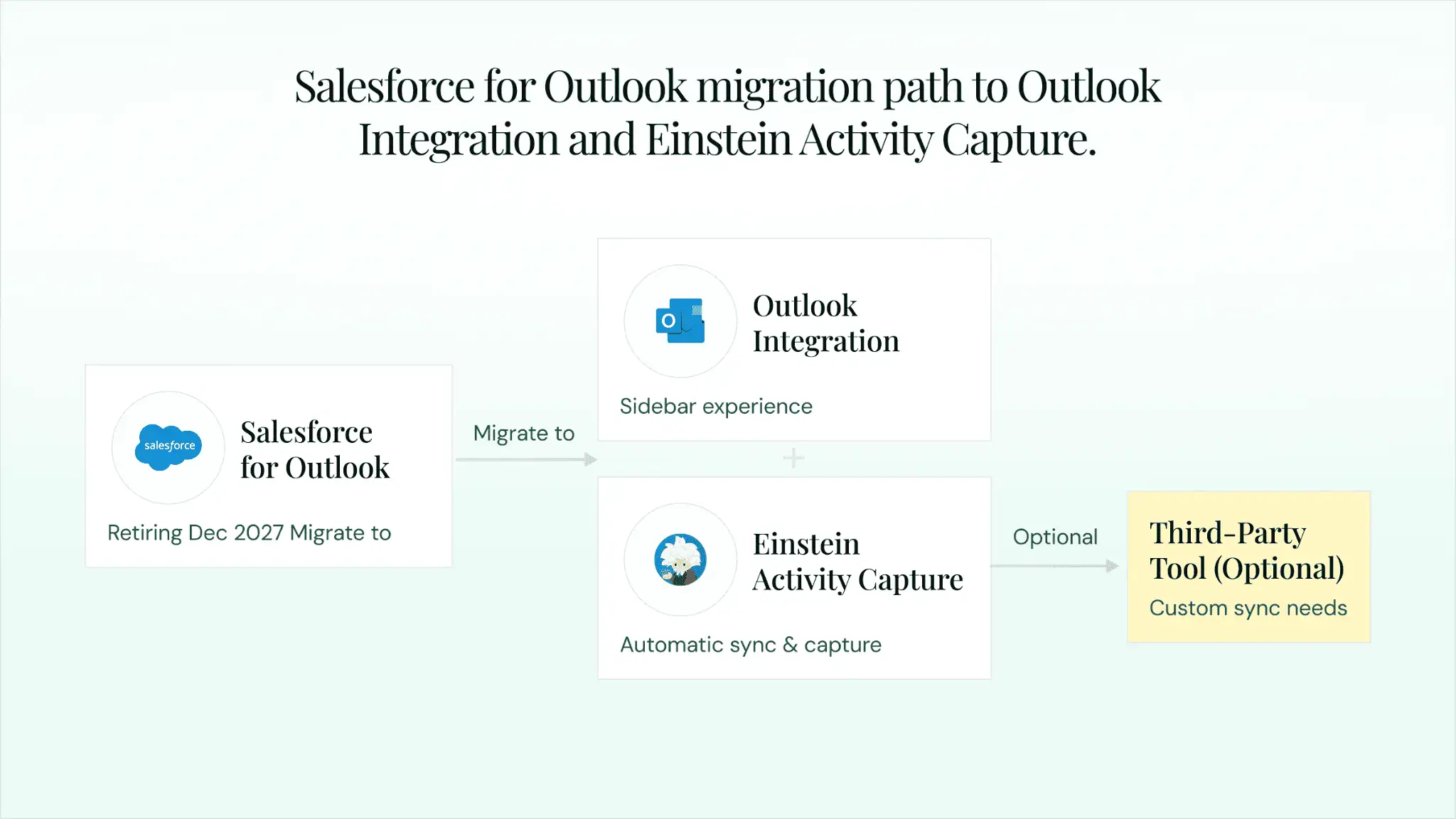
Salesforce for Outlook migration path to Outlook Integration and Einstein Activity Capture.
How to Set Up Salesforce Email Integration
Setup falls into three buckets: prerequisites, sidebar integration, and automatic capture. Most orgs run them in that order.
Prerequisites and Planning
Before you touch any settings, confirm four things.
One: your Salesforce edition, because feature support varies (see the matrix below).
Two: your email platform, since Outlook and Gmail have different setup paths.
Three: Enhanced Email is enabled, under Setup → Enhanced Email.
Four: a pilot group of five to ten reps you can roll the integration out to before going wider.
| Feature | Professional | Enterprise | Unlimited |
| Email-to-Salesforce (BCC) | ✅ | ✅ | ✅ |
| Outlook Integration | ✅ | ✅ | ✅ |
| Gmail Integration | ✅ | ✅ | ✅ |
| EAC Standard (≤100 users) | ✅ | ✅ | ✅ |
| Full EAC (Sales Cloud Einstein) | ❌ | 💲 Add-on | ✅ Included |
| Enhanced Email | ✅ | ✅ | ✅ |
Setting Up Outlook Integration
Navigate to Setup, search for “Outlook Integration and Sync,” and toggle it on. Configure logging behavior and the sidebar features you want surfaced. Create or assign the Salesforce Inbox With Einstein Activity Capture permission set (or the older Outlook Integration permission set if you are not using Inbox features). Have your M365 admin complete the Admin Consent Flow for Microsoft Graph API scopes, since this is the step that breaks most 2026 rollouts. Deploy the Salesforce add-in through the M365 Admin Center to your pilot group, and have them test for a week before you push it wider.
Setting Up Gmail Integration
The Gmail flow mirrors Outlook. Navigate to Setup, search “Gmail Integration and Sync,” and toggle it on. Configure which related records appear in the panel and which logging behavior you want as the default. Assign the appropriate permission set, then guide users to install either the Salesforce Chrome extension or the Google Workspace Add-on (the add-on works across browsers, the extension is Chrome only). Validate by sending a test email and confirming it appears on the right record.
Setting Up Einstein Activity Capture
EAC is the most involved of the three, and the most consequential. Verify your edition includes EAC, or that you have the Sales Cloud Einstein add-on. Navigate to Setup → Einstein Activity Capture and create a configuration. Connect email accounts via OAuth, which requires admin consent in either Azure AD (for Microsoft) or Google Admin Console (for Google).
Configure the sync settings carefully. Decide which emails to capture (all, or filtered by domain), set sharing rules so reps know what is private versus visible to the team, and build an exclusion list for personal email domains, legal, HR, and anything else you do not want captured. Communicate the privacy model to users before going live, because surprises here erode trust fast.
Calendar Synchronization with Salesforce
Calendar sync is the most-requested feature and the most-misconfigured. The main reason: orgs enable two sync engines at once and end up with duplicate events.
How Calendar Sync Works
Calendar sync moves events between your email client and Salesforce in either one or both directions. The fields that sync are the obvious ones: subject, time, attendees, description, location. Sync frequency depends on the engine, but server-side methods like EAC typically run every few minutes rather than in real time. The Outlook and Gmail Integration sidebars do not handle calendar sync on their own; that job belongs to EAC or, for legacy customers, Lightning Sync.
Setting Up Calendar Sync
For new deployments, EAC is the path. Once email sync is configured, calendar sync is a toggle in the same screen. For Microsoft environments still running Lightning Sync, note that it is no longer offered to new customers and that the Microsoft EWS retirement in October 2026 will break configurations using EWS. You will need to migrate to Microsoft Graph or to EAC before then.
For most orgs, bi-directional sync makes the most sense. One-way sync (email to Salesforce) is safer for teams worried about Salesforce events cluttering personal calendars.
Avoiding Calendar Sync Conflicts
Three things cause most calendar sync problems.
- Duplicate events happen when both Lightning Sync and EAC are enabled for the calendar at the same time, so pick one.
- Timezone mismatches create events at the wrong time when Salesforce user settings do not match the email client; align them.
- Recurring events sometimes sync poorly, especially edited series, so test them during the pilot.
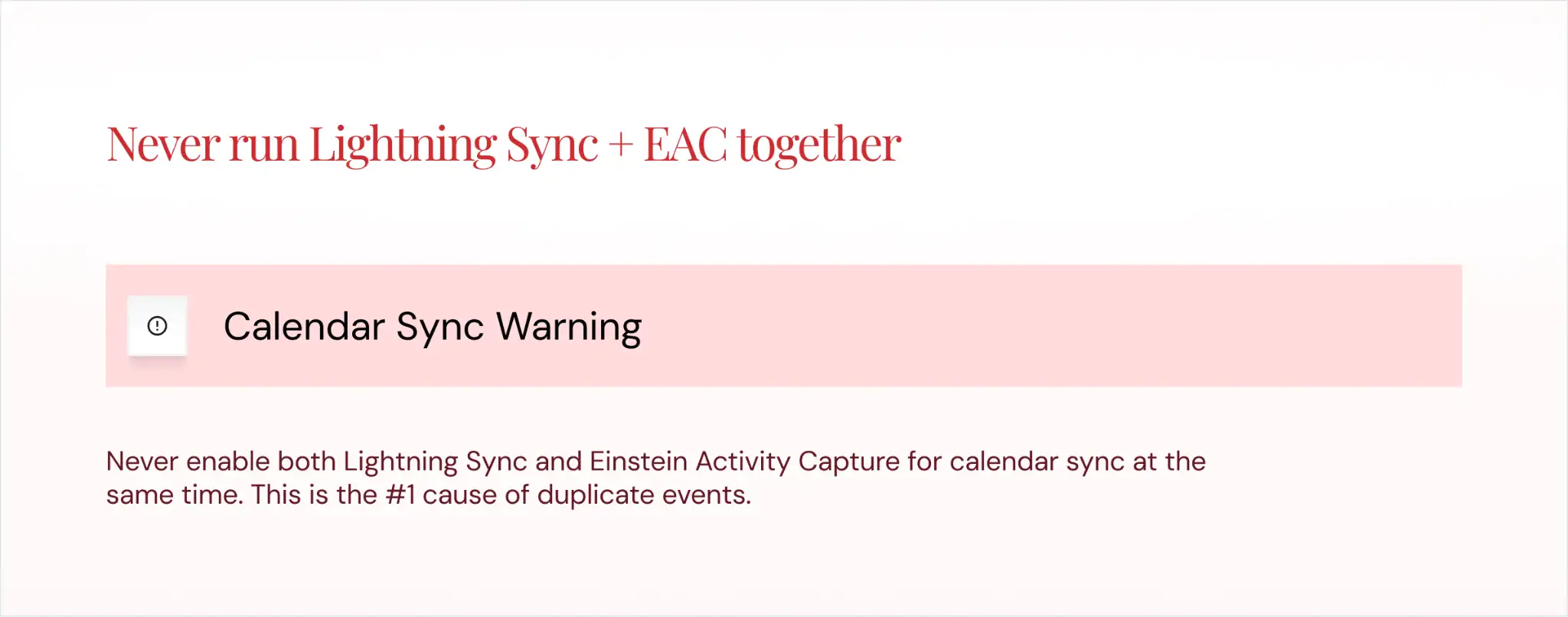
Never run Lightning Sync + EAC together
Best practice is to define a system of record for calendar (usually the email client), set sync direction accordingly, and exclude personal calendars from sync entirely.
Never enable both Lightning Sync and Einstein Activity Capture for calendar sync at the same time. This is the single most common cause of duplicate events.
Choosing the Right Salesforce Email Integration
Most articles describe features. Few help you choose. This section is a decision framework based on the variables that actually matter: edition, email client, automation requirements, budget, and compliance.
Decision Framework
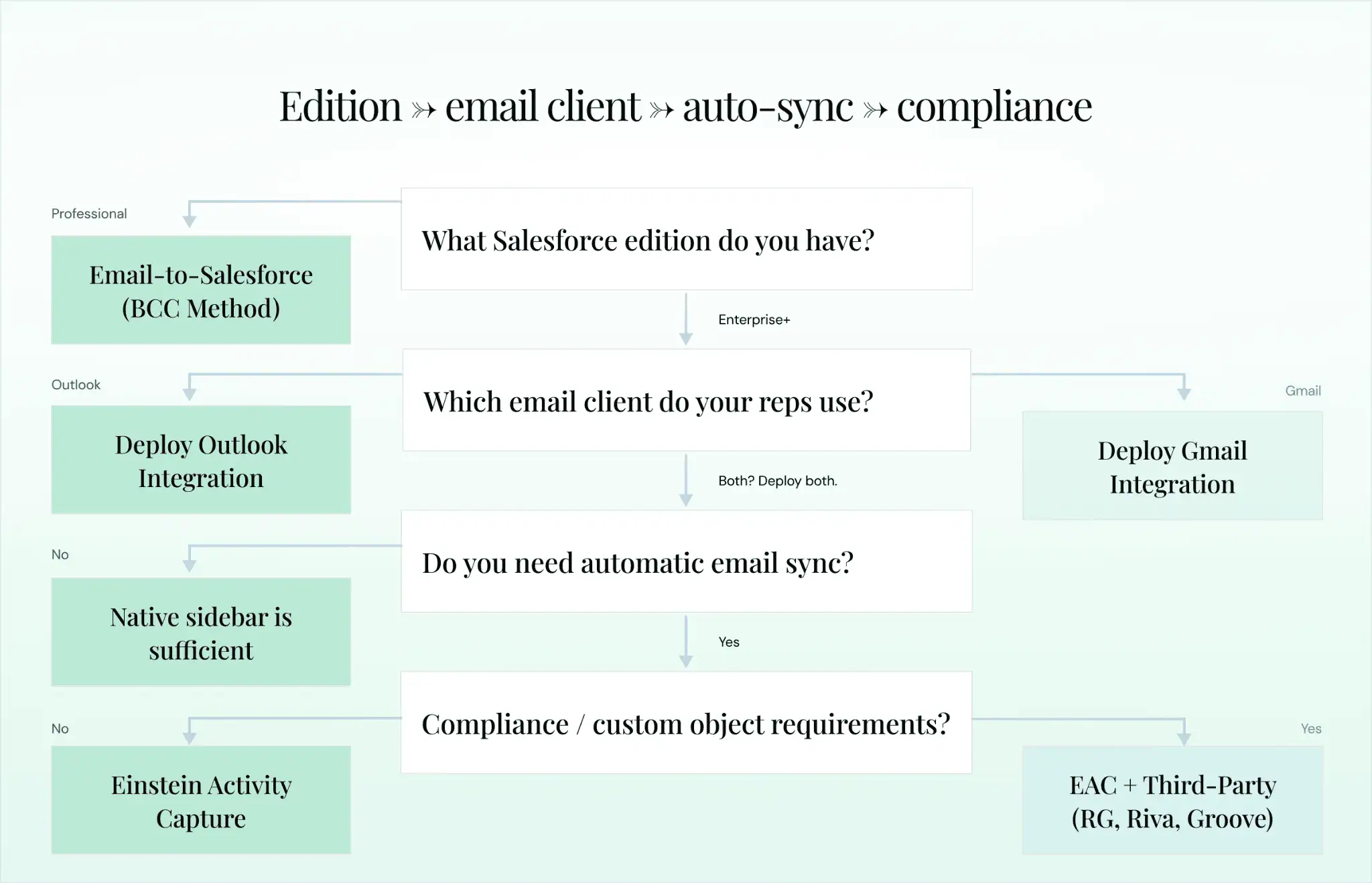
Edition → email client → auto-sync → compliance
Walk it in this order.
- Edition: Professional caps you at Email-to-Salesforce; Enterprise unlocks the native sidebars; Unlimited or Performance unlocks Full EAC.
- Email client: match the native integration to your inbox, and deploy both if your team is mixed.
- Automation: if manual logging is acceptable, native sidebars alone work; if you need automatic capture, you need EAC or a third-party tool.
- Budget: Full EAC adds about $50 per user per month for Enterprise, third-party tools start around $10 to $30 per user.
- Compliance: if you are in a regulated industry, evaluate server-side third-party tools with stronger governance.
Comparison Table
This is the single view most admins want:
| Method | Auto-Sync | Calendar Sync | Edition | Cost | Outlook | Gmail | Deployment | Custom Objects |
| Outlook Integration | ❌ Manual | ❌ (needs EAC) | Group+ | Free | ✅ | ❌ | Client-side | ❌ |
| Gmail Integration | ❌ Manual | ❌ (needs EAC) | Essentials+ | Free | ❌ | ✅ | Client-side | ❌ |
| Einstein Activity Capture | ✅ | ✅ | Starter+ (Standard); Unlimited or add-on (Full) | Free or $50/user/mo | ✅ | ✅ | Server-side | ❌ |
| Email-to-Salesforce | ❌ Manual BCC | ❌ | Professional+ | Free | ✅ | ✅ | N/A | ❌ |
| Revenue Grid | ✅ | ✅ | Any | Paid | ✅ | ✅ | Server-side | ✅ |
| Cirrus Insight | ✅ | ✅ | Any | Paid | ✅ | ✅ | Client-side | Limited |
| Riva | ✅ | ✅ | Any | Paid | ✅ | ✅ | Server-side | ✅ |
| Groove by Clari | ✅ | ✅ | Any | Paid | ✅ | ✅ | Salesforce-native | ✅ |
| LinkPoint360 | ✅ | ✅ | Any | Paid | ✅ | ❌ | Client-side direct | Limited |
| Veloxy | ✅ | ✅ | Any | Paid | ✅ | ✅ | Client-side | Limited |
Recommended Configurations by Team Size
Small teams (1–20 reps): native Outlook or Gmail Integration plus Email-to-Salesforce as a fallback. Minimal admin overhead, zero added cost.
Mid-market (20–200 reps): native sidebar plus Einstein Activity Capture for automatic logging. This combination covers both the rep experience and data completeness without buying a third-party tool you may not need.
Enterprise (200+ reps): Einstein Activity Capture as the foundation, supplemented by a third-party tool for custom object sync, indefinite retention, and compliance controls. Revenue Grid, Riva, or Groove by Clari are the three names worth shortlisting depending on whether your priority is governance, infrastructure constraints, or sales engagement breadth. Revenue Grid pricing starts at $30 per user per month for that tier.
User Access, Permissions, and Security
Permission Sets and Profiles
Each native integration has a corresponding permission set: Outlook Integration User, Gmail Integration User, and Standard Einstein Activity Capture. Find them under Setup → Permission Sets, and assign them through Permission Set Groups or directly to users. Most admins build a single custom permission set that bundles integration access with other rep permissions, which simplifies onboarding from three steps to one. Managers usually need an additional permission set to view team-level activity data.
Email Privacy and Compliance
Privacy is where EAC gets complicated. Captured emails are private to the owner by default, but admins can enable sharing rules that make them visible to managers or the broader team. Communicate that change before you make it.
For organizations subject to GDPR, automatic capture of EU contacts requires a defensible legal basis, usually legitimate interest with a documented Legitimate Interest Assessment and a Data Protection Impact Assessment. The UK ICO’s workplace monitoring guidance is the clearest reference. Aggressive exclusion lists for personal domains, HR, and legal addresses are not optional in regulated environments.
Data Governance Best Practices
Document your sync rules, including what is captured, what is excluded, and who can see what. Enable audit logging so you can track who connected their email and when sync started or stopped. Review sync logs monthly to catch errors before they compound into data quality problems.
For HIPAA, FINRA, or similar regulated environments, run the configuration past your compliance team before flipping any switches. Some regulations restrict what communication content can be stored in CRM systems, and EAC’s off-platform storage model can complicate audit trails. Revenue Grid maintains a security and compliance overview that covers the questions auditors usually ask.
Tips to Troubleshoot Common Salesforce Email Integration Issues
Even well-configured integrations break. These four issues account for most support tickets in 2026.
Emails Not Syncing
The usual suspects, in order: missing permission set, expired OAuth token, Enhanced Email not enabled, or a missing M365 Admin Consent Flow (the new 2026 requirement). Diagnose in that order. Check Setup → Einstein Activity Capture → User Status to confirm the user account is active and authenticated. EAC also does not support email aliases, which catches some teams off guard.
Duplicate Records Created by Sync
Duplicates happen when the integration creates a new contact or lead because it cannot match an inbound address to an existing record. The fix is to configure matching rules under Setup → Duplicate Management and enable duplicate alerts. If you are running EAC alongside another tool that creates Events, expect duplicates until you disable one of them.
Calendar Events Not Appearing
Three causes account for most cases: sync direction is set to one-way in the wrong direction, the event type is excluded from sync, or the user’s Salesforce timezone does not match their email client. Verify direction first, then filters, then timezone.
Performance and Sync Delays
Server-side sync runs every 5 to 15 minutes, not in real time, so set expectations accordingly. If delays exceed 30 minutes consistently, check status.salesforce.com for platform issues and open a case with Salesforce Support that includes user identifiers, affected records, and timestamps.
| Symptom | Likely Cause | Fix |
| Emails not appearing on records | Permission set missing or OAuth expired | Reassign permission set; re-authenticate OAuth |
| Duplicate contacts or leads | No matching rule configured | Set up Duplicate Management matching rules |
| Calendar events missing | Sync direction or timezone mismatch | Verify direction; align timezones |
| Sync delayed >30 minutes | Platform issue or server queue | Check status.salesforce.com; contact Support |
| Enhanced Email errors | Feature not enabled | Setup → Enhanced Email → toggle on |
Best Practices for Salesforce Email Integration in 2026
Drive User Adoption
The best integration fails if reps do not use it. Train on the why, not the buttons: show reps the time they get back, not where to click. Build a one-page quick-reference guide or a two-minute video. Track adoption metrics weekly (connected accounts, emails logged, EAC sync status) and follow up with non-adopters individually rather than blasting reminder emails.
Optimize Templates and Personalization
Lightning Email Templates with merge fields are the standard. Pair them with HTML formatting (Enhanced Email enables this) and A/B test subject lines using engagement data from EAC or your third-party tracking tool. Treat templates as a living asset, not a one-time setup.
Combine Methods for Maximum Coverage
The single biggest insight in this guide bears repeating: native sidebars and EAC are complementary, not competing. Sidebar gives reps the in-inbox experience. EAC handles automatic logging. Together they cover both the user experience and the data completeness angles. Layer in a third-party tool only when native capabilities miss something specific your business needs.
Maintain and Monitor Regularly
Integrations are not set-and-forget. Review sync logs monthly. Refresh OAuth connections after password rotations. Read Salesforce release notes (three a year: Spring, Summer, Winter) so you spot changes before they break things. Re-evaluate your integration stack annually, because the right answer in 2024 might not be the right answer in 2027.
Conclusion
Salesforce email integration is not one-size-fits-all. The right approach depends on your edition, your email client, your team size, your budget, and your compliance requirements, in roughly that order.
For most organizations, the playbook is the same. Start with the native Outlook or Gmail Integration to give reps the inbox sidebar. Layer Einstein Activity Capture on top for automatic logging if your edition includes it or the add-on is in budget. Evaluate third-party tools when native capabilities fall short on custom object sync, retention, or compliance.
What changes faster than the products is the surrounding context. Salesforce continues to invest in Agentforce and AI-driven activity intelligence, the Salesforce for Outlook deadline keeps moving closer, and Microsoft’s EWS retirement in October 2026 is going to force a wave of migrations. Audit your current setup now, pilot before you commit, and treat this as infrastructure work rather than a tooling decision. The teams that get email integration right are the ones whose forecasts you can trust.
If your team has outgrown what native tools can do, the Revenue Grid email and calendar integration is built for the gaps EAC leaves behind: custom object sync, indefinite data retention, and governance controls regulated industries actually need.
1. What is the best email integration for Salesforce?
There is no single best answer. For most organizations, the native Outlook or Gmail Integration paired with Einstein Activity Capture is the strongest free option, assuming your edition supports it. For enterprises with custom object requirements, indefinite retention needs, or strict compliance mandates, third-party tools like Revenue Grid, Riva, or Groove by Clari offer deeper customization. Use the decision framework above to match a method to your specific context.
2. How do I integrate my email with Salesforce?
In four steps.
- One: enable Enhanced Email in Salesforce Setup.
- Two: install the native Outlook or Gmail Integration (managed package or Chrome extension respectively).
- Three: assign the appropriate permission set to your users.
- Four: have users connect their accounts. For automatic sync, also enable Einstein Activity Capture.
3. Does Salesforce email integration work with both Outlook and Gmail?
Yes. Salesforce ships dedicated native integrations for both. The Outlook Integration is a managed add-in for Outlook desktop, web, and Mac. The Gmail Integration is a Chrome extension and Google Workspace Add-on. Einstein Activity Capture works with both platforms for automatic sync.
4. Is Einstein Activity Capture free?
Partially. EAC Standard is included at no extra cost with Starter, Professional, and Enterprise editions, but it caps at 100 users and excludes premium features like Activity Metrics and Email Insights. Full EAC is included with Performance and Unlimited editions. For Enterprise, full EAC requires the Sales Cloud Einstein add-on, which is approximately $50 per user per month.
5. Can I sync my calendar with Salesforce?
Yes. The recommended path in 2026 is Einstein Activity Capture, which handles bi-directional calendar sync alongside email. Lightning Sync still works for existing customers but is no longer available to new ones, and the Microsoft EWS retirement in October 2026 will force most Lightning Sync users to migrate. See the calendar synchronization section for setup and conflict-avoidance tips.
6. What happened to Salesforce for Outlook?
Salesforce for Outlook is in phased retirement. Salesforce moved it to maintenance-only in 2019, stopped issuing new licenses in January 2025, and will fully retire the product on December 31, 2027. Migrate before the deadline by installing the Outlook Integration to replace the sidebar and enabling Einstein Activity Capture to replace contact and event sync. Previously synced data stays in both Salesforce and Outlook after retirement.
7. How do I fix Salesforce email integration not syncing?
Check four things in order. One: the user has the correct integration permission set. Two: OAuth tokens are still valid (re-authenticate in the user’s personal settings or in Setup → Einstein Activity Capture). Three: Enhanced Email is enabled. Four: the M365 Admin Consent Flow is complete (this is a 2026 requirement that catches most rollouts). If none of those resolve the issue, check exclusion filters and contact Salesforce Support.
8. Can Salesforce email integration log emails automatically?
The native Outlook and Gmail Integrations only support manual one-click logging. For true automatic capture with no rep action, you need Einstein Activity Capture or a third-party tool like Revenue Grid, Cirrus Insight, or Groove by Clari. Note that automatically captured emails (via legacy EAC) follow different storage and retention rules than manually logged emails, unless you have enabled the Summer ’25 “Sync Email as Salesforce Activity” feature, which converts captured emails into native Salesforce records.
What replaced Salesforce for Outlook?
Salesforce’s official replacement combines Outlook Integration and Einstein Activity Capture. Outlook Integration provides the inbox side-panel experience, while Einstein Activity Capture handles automatic email, contact, and calendar capture and sync.
Is Salesforce Outlook integration being discontinued?
Salesforce for Outlook, the legacy desktop product, is being retired. The newer Outlook Integration is a separate product and is Salesforce’s current Outlook side-panel solution.
Is Salesforce for Outlook still supported?
Salesforce for Outlook is a retiring legacy product and is scheduled for full retirement in December 2027. Existing customers should migrate to Outlook Integration and Einstein Activity Capture, or another integration that supports their required workflows, before that date.
Which CRM is compatible with Outlook?
Salesforce integrates with Microsoft Outlook through Outlook Integration and Einstein Activity Capture. Revenue Grid extends that Salesforce-Outlook connection with automatic activity capture, two-way calendar sync, delegated and shared calendars, custom-object support, and Salesforce-native activity records.