

Picture this: your sales rep closes out a Friday with 40 open opportunities. They mentally flag three for Monday follow-up. By Tuesday, two of those have gone cold — not because the deal was lost, but because the follow-up never happened. No one dropped the ball on purpose. There were calls, demos, internal meetings, and a pipeline review that ate the morning. The reminder just never came.
This is the quiet reality for most sales teams managing high volumes of client communication. Manual follow-up is inconsistent by nature. It depends on individual discipline, calendar habits, and memory — none of which scale. And when you multiply that across a team of 20 reps, each managing dozens of active accounts, the gaps compound fast.
Salesforce automated email reminders exist to close exactly those gaps. Instead of relying on reps to remember when to follow up, the system does it for them — triggered by the right conditions, sent at the right time, to the right person. The result is consistent communication that doesn’t depend on anyone’s to-do list.
This guide walks through how Salesforce reminder automation actually works: the tools available, how to configure them, where they deliver the most value, and what to watch out for as your setup matures.
What Manual Follow-Up Actually Costs You
Before getting into configuration, it’s worth being honest about what inconsistent follow-up costs. It’s not just a few missed emails — it’s measurable revenue leakage across your pipeline.
Research from McKinsey shows that sales automation can improve team productivity by up to 30 percent. That’s not a marginal gain. For a team of 20 reps, that’s the equivalent of six additional full-time contributors — without adding headcount. The productivity loss from manual reminder management shows up in longer sales cycles, lower conversion rates, and deals that stall simply because no one nudged them forward.
There’s also the engagement side. Studies consistently show that response rates drop sharply after the first 24 hours of inactivity. A prospect who doesn’t hear back within a day is significantly less likely to re-engage than one who receives a timely, relevant follow-up. Manual processes rarely hit that window reliably. Automated reminders do.
The good news: Salesforce gives you multiple tools to fix this. The challenge is knowing which one to use and when.
The Salesforce Reminder Toolkit: What You’re Actually Working With
Salesforce doesn’t have a single “reminder” feature — it has several, each suited to different scenarios. Understanding the distinction saves you from over-engineering simple use cases or under-building complex ones.
Here’s a quick map of what’s available:
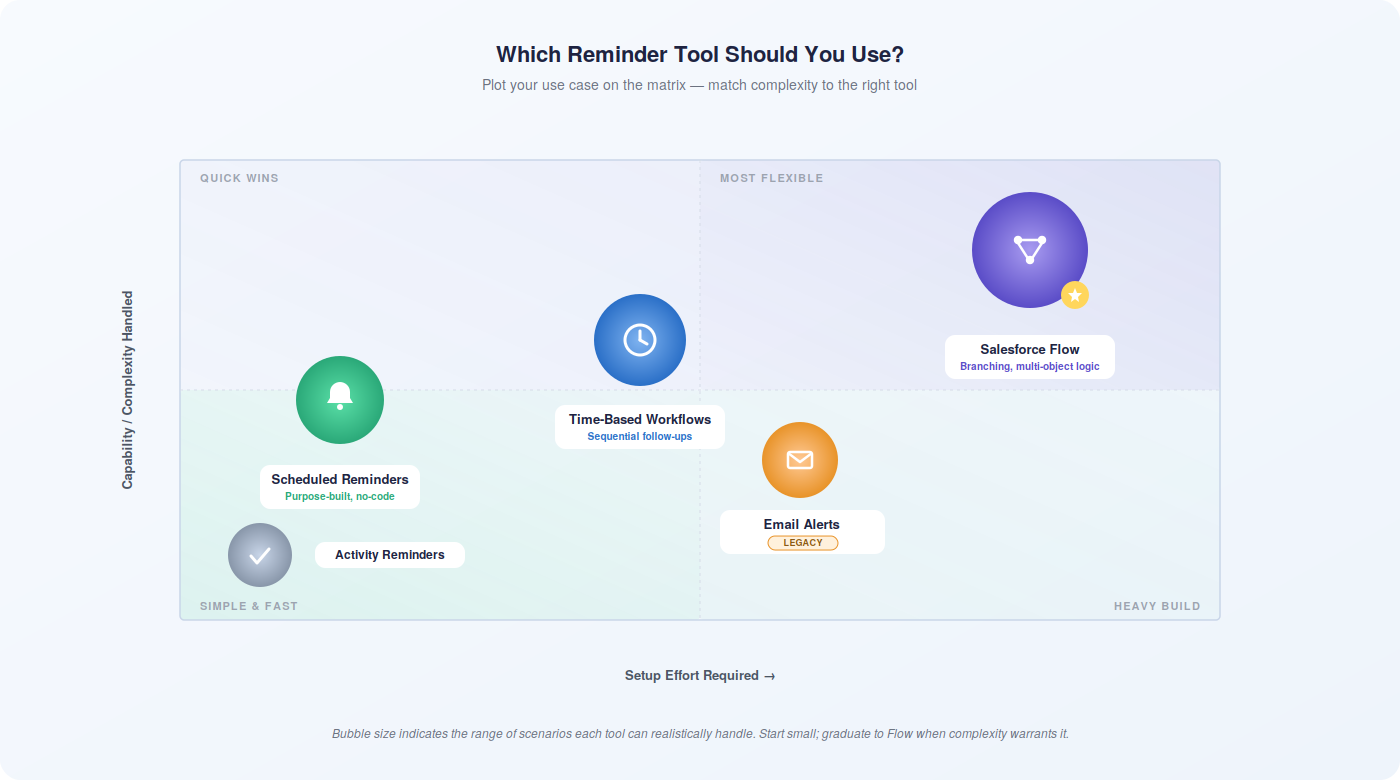
- Scheduled Reminders — A dedicated tool for creating automated email notifications tied to record conditions and time-based rules. Best for straightforward, recurring reminder logic.
- Time-Based Workflow Rules — Trigger email alerts after a defined delay from a record event. Useful for sequential follow-up sequences tied to specific field changes.
- Salesforce Flow (Record-Triggered and Scheduled) — The most flexible option. Supports conditional logic, branching, and multi-step sequences. Ideal for complex scenarios.
- Activity Reminders — Built-in notifications for tasks and events within Lightning Experience. These are internal alerts for your team, not outbound emails to customers.
- Email Alerts via Process Builder — Legacy tool, still functional, but Salesforce recommends migrating to Flow for new builds.
Each tool has its place. The right choice depends on your use case complexity, your admin’s technical comfort level, and how much customization the scenario requires. We’ll walk through the primary ones in detail.
Scheduled Reminders are Salesforce’s purpose-built solution for automated email notifications. They’re designed to be accessible — you don’t need to be a Flow expert to configure them — and they handle the most common reminder scenarios cleanly.
Step 1: Assign the Right Permissions
Before anything else, confirm that the admin configuring reminders has the Manage Scheduled Reminders system permission. The cleanest way to handle this is through a dedicated permission set rather than modifying profiles directly.
- Go to Setup → Permission Sets → New
- Name the permission set (e.g., “Scheduled Reminders Admin”)
- Under System Permissions, enable Manage Scheduled Reminders
- Assign the permission set to the relevant admin users
This keeps access controlled without giving broader admin rights to users who only need to manage reminders.
Step 2: Create a Reminder Definition
- Open the App Launcher and search for Reminder Definitions
- Click New to create a new reminder
- Enter a descriptive name — something that makes the trigger logic obvious at a glance (e.g., “Lead No Response — 7 Days”)
- Select the Object the reminder applies to (Leads, Contacts, Opportunities, or a custom object)
- Define the Condition that triggers the reminder — for example, Lead Status equals “Contacted” and Last Activity Date is more than 7 days ago
- Set the Recipient — typically the record owner, but you can specify other users or roles
- Configure the Schedule — daily, weekly, or at a specific time
- Select or create the Email Template to use for the reminder message
- Save and activate the reminder
One thing to note: Scheduled Reminders work best when your Salesforce email templates are already built and organized. If your template library is scattered or outdated, clean that up first — the reminder is only as good as the message it sends.
Step 3: Test Before You Activate
Always test reminder logic against a small set of records before activating broadly. Create a test lead or opportunity that matches your trigger conditions, confirm the reminder fires as expected, and verify that the email content renders correctly with the right merge fields populated.
Skipping this step is how you end up sending a reminder addressed to “Dear {FirstName}” to 300 contacts on a Monday morning.
Time-Based Workflow Rules: Building Sequential Follow-Up
Time-based Salesforce workflow automation rules give you more control over the timing of reminder sequences. Rather than firing on a recurring schedule, they trigger a defined number of hours or days after a specific event — which makes them well-suited for multi-step follow-up sequences tied to deal activity.
How to Configure a Time-Based Workflow
- Go to Setup → Process Automation → Workflow Rules → New Rule
- Select the object (e.g., Opportunity)
- Define the Rule Criteria — for example, Stage equals “Proposal Sent” and the rule fires when the record is created or edited to meet criteria
- Under Workflow Actions, click Add Time Trigger
- Set the time delay — for example, 2 days after the rule trigger date
- Add an Email Alert action that sends a follow-up reminder to the opportunity owner
- Add additional time triggers as needed — for example, a second reminder at 5 days, a third at 10 days
- Activate the rule
This approach creates a structured follow-up cadence that runs automatically once a proposal is sent. The rep doesn’t need to set reminders manually — the workflow handles it. If the opportunity stage changes before the next trigger fires, Salesforce removes the pending actions from the queue, so you’re not sending “did you see our proposal?” emails to someone who already signed.
Keep in mind: Salesforce is gradually moving users toward Flow for new automation builds. Time-based workflows still work, but if you’re building something new and complex, Flow is the more future-proof choice.
Salesforce Flow: When You Need More Control
Flow is where reminder automation gets genuinely powerful. It supports conditional branching, multi-object logic, dynamic content, and scheduling — which means you can build reminder sequences that respond intelligently to what’s actually happening in a deal, not just what time it is.
Record-Triggered Flows for Reminder Automation
A record-triggered flow fires when a record is created or updated. You can use this to kick off a reminder sequence the moment a specific condition is met — for example, when an opportunity moves to “Negotiation” stage without an associated contact role.
To build a basic record-triggered reminder flow:
- Go to Setup → Process Automation → Flows → New Flow
- Select Record-Triggered Flow
- Choose the object and define the trigger — record created, updated, or both
- Set entry conditions that filter which records enter the flow
- Add a Send Email action — you can use an existing email template, a text template resource, or content entered directly in the action
- Add decision elements if you need branching logic (e.g., send different reminders based on deal size or region)
- Save, activate, and test
Scheduled Flows for Time-Based Outreach
Scheduled flows run at a defined time and can process batches of records that meet specific criteria. Think of it as a daily sweep: every morning at 8 AM, the flow identifies all leads that haven’t been contacted in seven days and sends a reminder to the assigned rep.
This is particularly useful for lead capture follow-up, where speed-to-contact directly affects conversion rates. A scheduled flow ensures that no new lead sits uncontacted past your defined threshold — regardless of how busy the team is.
Flow also integrates cleanly with Salesforce email and calendar integration, which means reminder logic can account for scheduled meetings, open tasks, and recent activity — not just static field values.
Activity Reminders: Keeping Your Team on Track Internally
Not all reminders are outbound. Salesforce’s built-in activity reminders handle the internal side — alerting reps when tasks are due or events are approaching, directly within the Lightning Experience interface.
These appear as notification cards in the lower-right corner of the screen. By default, event reminders fire 15 minutes before the scheduled start time. Task reminders appear when the due date arrives. Both are configurable at the user level.
Enabling and Configuring Activity Reminders
- Go to your personal Settings (click your avatar → Settings)
- Under Activity Reminders, enable reminders for events and tasks
- Set your preferred default reminder time for events (options range from 0 minutes to 2 weeks before)
- Choose whether to receive an email notification when a task is assigned to you
- Save your preferences
Admins can also configure organization-wide defaults for activity reminders through Setup → Activity Settings. One important detail: reminder refresh cycles run on 10-minute intervals. If you update reminder settings, allow at least 10 minutes before expecting the changes to take effect.
Also worth knowing: external users — including Salesforce Communities users and partner community license holders — don’t receive in-app activity reminders. For those user types, email-based reminders are the only reliable notification channel.
Use Cases That Actually Move the Needle
Reminder automation is only valuable if it’s applied to the right scenarios. Here are the use cases where it consistently delivers measurable impact.
Sales Follow-Up and Lead Nurturing
This is the highest-volume use case for most teams. A prospect fills out a form, gets an immediate confirmation email, and then enters a nurture sequence — educational content, case studies, product comparisons — delivered over the following two to three weeks. If they go quiet, a rep gets flagged automatically.
The key is sequencing. A single reminder rarely moves the needle. A structured cadence — initial outreach, value-add follow-up, direct ask — does. Salesforce Engage supports this kind of multi-touch sequence natively, and it integrates with reminder logic to ensure reps are notified when prospects engage with content.
Understanding the difference between leads vs. opportunities in Salesforce matters here too. Reminder logic for a lead in early nurture looks very different from a reminder for an opportunity in late-stage negotiation. Build them separately.
Proposal and Contract Follow-Up
Proposals have a short shelf life. If a prospect doesn’t respond within 48 to 72 hours, the likelihood of closing drops significantly. Automated reminders ensure that reps follow up within that window — not when they remember to check their task list.
For contract renewals, reminders can be configured to fire 90, 60, and 30 days before the renewal date, giving account managers enough runway to have a real conversation rather than a last-minute scramble. Pair this with Salesforce DocuSign integration to track document status and trigger reminders based on whether a contract has been opened, signed, or left untouched.
Appointment and Meeting Management
No-shows are expensive. A reminder sent 24 hours before a scheduled meeting — and another one hour before — can cut no-show rates significantly. Salesforce Lightning Scheduler handles the scheduling side, and reminder automation handles the attendance side. Together, they create a complete appointment management workflow.
The Salesforce Scheduler Adapter extends this further, enabling reminder logic to connect with external scheduling systems — useful for teams that manage appointments across multiple platforms.
Internal Task and Approval Reminders
Approval bottlenecks kill deal velocity. When a discount request or contract exception sits in someone’s queue for three days because they forgot to check, the deal stalls. Automated reminders — sent to approvers when requests go unaddressed past a defined threshold — keep approvals moving without requiring managers to chase people manually.
This is also where Salesforce Slack integration adds value. Reminder notifications can be routed to Slack channels, making it harder for approvers to miss them compared to email alone.
Re-Engagement for Inactive Records
Leads and contacts go cold. It happens. But a cold lead isn’t necessarily a dead lead — sometimes they just need a nudge at the right moment. Automated reminders can identify contacts that haven’t been active in 30, 60, or 90 days and trigger a re-engagement sequence, either to the contact directly or to the assigned rep as a prompt to reach out personally.
This use case pairs well with Salesforce reporting tools — build a report that surfaces inactive records, then use that report as the data source for a scheduled flow that triggers re-engagement reminders automatically.
Email Deliverability: Making Sure Reminders Actually Arrive
A reminder that lands in spam is worse than no reminder at all — it creates a false sense of security that follow-up happened when it didn’t. Deliverability isn’t glamorous, but it’s non-negotiable.
Authentication Protocols
Three protocols form the foundation of email deliverability:
- SPF (Sender Policy Framework) — Identifies which mail servers are authorized to send on behalf of your domain. Without it, your emails are more likely to be flagged as spoofed.
- DKIM (DomainKeys Identified Mail) — Adds a digital signature to outgoing emails, proving they originated from an authorized source.
- DMARC (Domain-based Message Authentication, Reporting & Conformance) — Sets the policy for what happens when emails fail SPF or DKIM checks, and provides reporting on authentication failures.
All three should be configured before you send automated reminders at scale. Salesforce’s email deliverability settings in Setup → Deliverability give you control over send access levels and bounce management.
List Hygiene and Send Limits
Salesforce caps external email sends at 5,000 per day for standard orgs. That limit sounds large until you’re running multiple reminder sequences across a sizable contact database. Prioritize your sends — focus reminder automation on high-value segments rather than blasting the entire database.
Regularly clean your contact lists. Invalid email addresses generate hard bounces, which damage your sender reputation over time. Remove addresses that consistently bounce, and suppress contacts who have unsubscribed. This isn’t just good practice — it’s required under CAN-SPAM and GDPR.
Compliance Basics
Two regulations govern most commercial email:
- CAN-SPAM Act — Requires honest subject lines, a physical mailing address, and a working unsubscribe mechanism. Unsubscribe requests must be honored within 10 business days.
- GDPR — Applies to contacts in the EU. Requires explicit consent before sending marketing emails and gives individuals the right to request data deletion. If you’re sending reminders to European contacts, consent documentation is mandatory.
Build unsubscribe links into every outbound reminder template. It’s not optional, and it protects both your sender reputation and your legal standing.
Personalization: The Difference Between a Reminder and a Response
Generic reminders get ignored. A message that says “Just following up” with no context gives the recipient no reason to respond. Personalized reminders — ones that reference the specific deal, the last conversation, or the prospect’s stated interest — get replies.
Salesforce merge fields make basic personalization straightforward. You can pull in the recipient’s first name, company name, opportunity name, close date, and dozens of other field values directly into your email templates. A reminder that says “Hi Sarah, wanted to follow up on the proposal we sent for Acme’s Q3 rollout” performs meaningfully better than one that says “Hi there, just checking in.”
For more advanced personalization, Flow supports dynamic content logic — sending different reminder content based on deal size, industry, or engagement history. A prospect who downloaded a technical whitepaper gets a different follow-up than one who attended a product demo. This level of segmentation requires more build time upfront, but the engagement lift is worth it.
If you’re using Salesforce Outlook integration or Salesforce Gmail integration, reminder context from email conversations can feed back into Salesforce records — giving your automation logic richer data to work with when determining what to send and when.
Timing and Frequency: Getting the Cadence Right
Sending too many reminders trains recipients to ignore them. Sending too few means deals stall. The right cadence depends on your sales cycle length, deal complexity, and the relationship stage — but there are some general principles that hold across most contexts.
Recommended Starting Points by Use Case
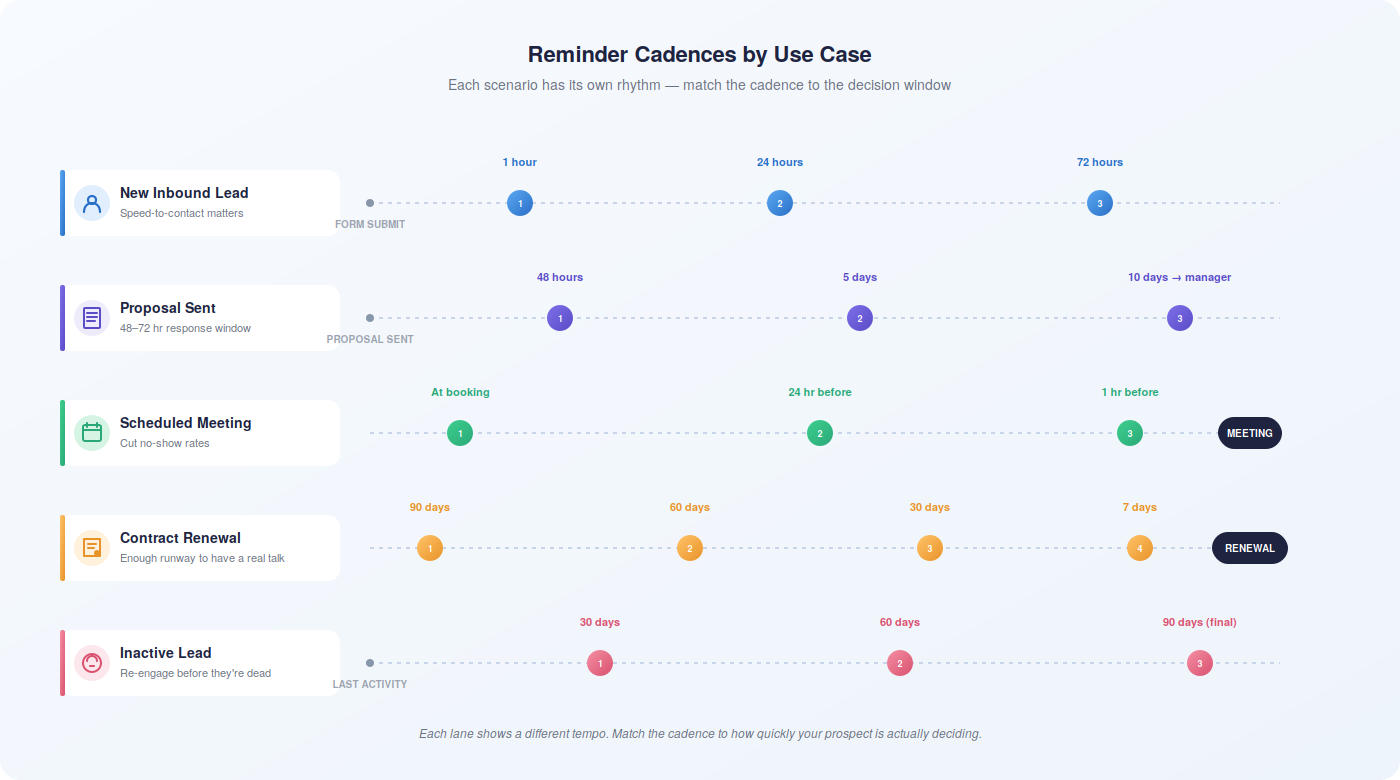
- New inbound lead: First follow-up within 1 hour of form submission, second at 24 hours, third at 72 hours if no response
- Proposal sent: Follow-up at 48 hours, second reminder at 5 days, escalation to manager at 10 days
- Contract renewal: Reminders at 90 days, 60 days, 30 days, and 7 days before renewal date
- Scheduled meeting: Confirmation immediately upon booking, reminder 24 hours before, reminder 1 hour before
- Inactive lead re-engagement: First touch at 30 days of inactivity, second at 60 days, final at 90 days
These are starting points, not rules. Run A/B tests on timing — send the same reminder at different intervals to different segments and measure response rates. Let the data tell you what works for your specific audience.
Einstein Send Time Optimization, available in Marketing Cloud, takes this further by analyzing individual engagement patterns and recommending the optimal send hour for each contact. It evaluates factors like historical open times, day-of-week preferences, and email frequency — then assigns a likelihood score to each hour of the week for each recipient. For high-volume reminder programs, this kind of optimization can meaningfully lift open rates without requiring manual analysis.
Measuring What’s Working
Reminder automation isn’t a set-it-and-forget-it exercise. The configuration you build today will need refinement as you gather data on what’s actually driving engagement and conversion.
Metrics to Track from Day One
- Email open rate — Baseline benchmark: 20–25% for B2B. Below that, look at subject lines and send timing.
- Click-through rate — Measures whether recipients are engaging with content beyond the open. Low CTR with high open rate usually points to weak calls to action.
- Response rate — For sales reminders, this is the metric that matters most. Track replies and inbound calls triggered by reminder sequences.
- Conversion rate by sequence — Which reminder sequences are actually converting leads to opportunities, or opportunities to closed-won? Build Salesforce reports that connect reminder activity to pipeline outcomes.
- Unsubscribe rate — Anything above 0.5% per send is a signal that frequency or content needs adjustment.
- Bounce rate — High bounce rates indicate list quality issues. Address them before they damage your sender reputation.
Build a Salesforce dashboard that surfaces these metrics in one view. Review it weekly during the first 90 days after launch, then monthly once the program stabilizes. Share it with the team using Salesforce dashboard sharing so managers can see performance without needing to pull reports manually.
Connecting Reminders to Revenue
The ultimate measure of reminder automation isn’t open rates — it’s revenue impact. Track these downstream metrics to build the business case for continued investment:
- Average sales cycle length before and after automation
- Win rate for opportunities that received automated follow-up vs. those that didn’t
- No-show rate for appointments with and without automated reminders
- Renewal rate for accounts receiving automated renewal reminders vs. those managed manually
If you’re using Salesforce collaborative forecasting, reminder-driven pipeline activity feeds directly into forecast accuracy — giving leadership a cleaner view of what’s actually moving and what’s stalled.
Where Native Salesforce Automation Has Limits
Salesforce’s built-in reminder tools cover a lot of ground. But as your automation program matures, you’ll likely run into scenarios where native functionality starts to feel constraining.
The 5,000 daily email limit becomes a real bottleneck for larger teams running multiple active sequences. Native tools don’t offer granular engagement tracking — you can see whether an email was sent, but not always whether it was opened or clicked without additional configuration. Personalization logic has a ceiling without custom development. And cross-object reminder logic — for example, triggering a reminder on an opportunity based on activity on a related contact — requires Flow expertise that not every admin team has.
These aren’t dealbreakers for most organizations starting out. But they’re worth knowing about as you plan for scale. Teams that outgrow native Salesforce reminder capabilities often look to purpose-built revenue intelligence platforms that layer on top of Salesforce — adding deeper engagement tracking, AI-driven send time optimization, and automated sequence management that goes beyond what Workflow Rules and Flow can deliver on their own.
Revenue Grid is one such platform. It integrates directly with Salesforce and extends reminder automation with signal-based triggers — surfacing deals that need attention based on actual engagement data, not just time elapsed. Rather than sending reminders on a fixed schedule, it identifies when a deal is genuinely at risk and prompts the right action at the right moment. For teams managing complex pipelines where timing and context matter as much as frequency, that kind of intelligence makes a meaningful difference.
Best Practices Checklist Before You Go Live
Before activating any reminder automation at scale, run through this checklist:
- Permission sets configured for reminder management — no unnecessary admin access granted
- Email templates reviewed for accuracy, personalization fields tested, and brand consistency confirmed
- SPF, DKIM, and DMARC records configured and verified
- Unsubscribe links included in all outbound reminder templates
- Contact lists cleaned — invalid addresses removed, unsubscribes suppressed
- Trigger conditions tested against a small record set before broad activation
- Reminder sequences reviewed for frequency — no recipient should receive more than one reminder per 48-hour window without a clear reason
- Reporting dashboard built to track open rates, response rates, and conversion impact
- Team briefed on what’s automated and what still requires manual action
- Review date scheduled — plan to audit performance at 30, 60, and 90 days post-launch
The Bottom Line
Manual follow-up doesn’t scale. It never did — it just wasn’t as obvious when pipelines were smaller and teams were tighter. As volume grows, the gaps in manual reminder management grow with it, and the revenue impact becomes harder to ignore.
Salesforce automated email reminders give you the infrastructure to close those gaps. Whether you start with Scheduled Reminders for straightforward use cases or build sophisticated Flow-based sequences for complex pipeline scenarios, the principle is the same: define the right trigger, send the right message, at the right time, to the right person — without relying on anyone’s memory to make it happen.
The configuration work upfront pays for itself quickly. Shorter response windows, higher engagement rates, fewer stalled deals, and a team that spends less time on administrative follow-up and more time on actual selling. That’s the return on getting this right.
If you’re finding that native Salesforce tools are covering the basics but leaving gaps in engagement visibility or sequence intelligence, Revenue Grid can help. It extends Salesforce’s automation capabilities with AI-driven signals that surface the right deals to act on — and the right moment to act. Book a demo to see how it works in practice.
How can I set up automated email reminders in Salesforce?
Salesforce offers several paths depending on your needs. For straightforward reminders, use Scheduled Reminders — accessible through the App Launcher under Reminder Definitions. For time-delayed sequences tied to record events, configure Time-Based Workflow Rules under Setup → Process Automation → Workflow Rules. For complex logic with conditional branching, build a Record-Triggered or Scheduled Flow through Setup → Process Automation → Flows. In all cases, start by ensuring the configuring admin has the Manage Scheduled Reminders permission, and test against a small record set before activating broadly.
What are the benefits of using Salesforce for email automation?
The core benefit is consistency. Automated reminders fire based on defined conditions — not on whether a rep remembered to follow up. This translates to shorter response windows, higher engagement rates, and fewer deals lost to administrative oversight. Beyond consistency, Salesforce automation scales without adding headcount. A workflow that handles 50 follow-ups per week handles 500 with no additional effort. It also creates an auditable record of communication activity, which supports both coaching and compliance. Teams using Salesforce Sales Cloud automation report productivity improvements of up to 30 percent, according to McKinsey research.
Are there limitations to Salesforce's automated email reminders?
Yes, and it’s worth knowing them upfront. Salesforce caps external email sends at 5,000 per day for standard orgs — a real constraint for larger teams running multiple active sequences. Activity reminders (the in-app notification cards) are not available to external users, including Community and Partner portal users; those users need email-based reminders instead. Reminder refresh cycles run on 10-minute intervals, so setting changes don’t take effect instantly. And native tools don’t provide granular engagement tracking — you can confirm sends, but detailed open and click data requires additional configuration or a third-party tool. For teams with high send volumes or complex personalization needs, native Salesforce tools may need to be supplemented.
How do I ensure my reminder emails are not marked as spam?
Three things matter most: authentication, list quality, and content. On authentication, configure SPF, DKIM, and DMARC records for your sending domain — these signal to email providers that your messages are legitimate. On list quality, regularly remove invalid addresses, honor unsubscribes promptly (within 10 business days under CAN-SPAM), and suppress contacts who consistently don’t engage. On content, avoid spam trigger words in subject lines, include a physical mailing address, and always provide a working unsubscribe link. Also monitor your bounce and complaint rates through Salesforce’s deliverability settings — sustained rates above 2% for bounces or 0.1% for complaints will damage your sender reputation over time.
Can I customize the frequency and timing of email reminders in Salesforce?
Yes — and this is one of the stronger aspects of Salesforce’s reminder tools. Scheduled Reminders support daily, weekly, monthly, or custom schedules. Time-Based Workflow Rules let you set delays in hours, days, or weeks from a trigger event, and you can stack multiple time triggers within a single workflow to create multi-step sequences. Salesforce Flow gives you the most control, supporting schedule-triggered execution at specific times, conditional branching that adjusts timing based on record attributes, and the ability to pause and resume sequences based on recipient behavior. For teams with access to Marketing Cloud, Einstein Send Time Optimization can further refine timing by analyzing each contact’s historical engagement patterns and recommending the optimal send hour.