

Key Takeaway
- Four methods connect Gmail to Salesforce in 2026: the free Lightning for Gmail Chrome extension, the Salesforce Connector for Gmail (Google Workspace Marketplace), Einstein Activity Capture, and third-party platforms such as Revenue Grid.
- The Lightning for Gmail Chrome extension is free and fast to install, though it requires manual per-email logging, runs only on desktop Chrome, and excludes calendar sync and mobile support.
- The Salesforce Connector for Gmail from the Google Workspace Marketplace is the strongest free option for mid-market teams because it supports bi-directional calendar sync, the Gmail mobile app, and domain-wide admin deployment through the Google Admin console.
- Einstein Activity Capture (EAC) syncs emails and calendar events automatically, but captured data lives in a separate data store that stays outside standard Salesforce reports, cannot trigger workflows or automations, and is typically retained for only 24 months.
- Third-party platforms like Revenue Grid capture 100% of email and calendar activity as standard, reportable Salesforce Task and Event records, with intelligent cross-threaded deal matching and SOC 2 Type II, GDPR, and ISO 27001 compliance.
- Native setup takes minutes. Enterprise platform deployment takes hours. Pick the tier that matches your team size, reporting requirements, and compliance posture. Most forecasting-driven orgs outgrow native options past 50 reps.
- Salesforce edition requirements: Gmail integration is fully supported in Enterprise, Performance, Unlimited, and Developer editions. Professional Edition requires an add-on.
- The most common failure mode after rollout is emails failing to log because the Gmail address on the thread lacks a matching Contact or Lead record in Salesforce. Address matching, OAuth session expiry, and permission set assignment cover most support tickets.
2:40pm on a Friday. Forecast call in 20 minutes. Your RevOps Director spots an $85K deal flagged Committed, with zero logged activity in 18 days. She pings the AE on Slack. He replies in 30 seconds: “Been emailing them nonstop, we’re on v4 of the redlines.”
Right there is the Gmail SFDC integration problem, written in one Slack thread. The emails are real. The deal is moving. Salesforce just cannot see any of it because nobody clicked “Log to Salesforce” at 7pm last Tuesday, and the Salesforce Gmail integration running on this org quietly stopped working three months ago when an OAuth token expired.
Every Salesforce Admin reading this has lived some version of that Friday. The hard part is that fixing it properly means choosing between four very different methods, each with its own trade-offs: the free Chrome extension, the Google Workspace Marketplace connector, Einstein Activity Capture, and third-party platforms. One will fit your team. The other three will cost you a quarter of rollout work before you realize the fit is wrong.
What follows is every Gmail integration with Salesforce worth considering in 2026, the exact setup steps for each, the issues that break in week two, and a decision framework for picking the right Salesforce Gmail plugin without getting burned on EAC’s retention limits six months in. Read it straight through if you’re scoping a rollout, or jump to the section you need.
First, the business case. Because picking the right method matters less if leadership still needs convincing that the problem is real.
Why Gmail and Salesforce Integration Matters
Every Salesforce Admin eventually builds the same business case for integration, and it lives in three numbers: how much rep time gets wasted on manual logging, how much pipeline visibility is missing from the forecast, and how long it takes a new rep to inherit a clean account history. Each one is easy to quantify once you look for it. Each one gets worse the longer the gap runs.
A proper Salesforce email integration closes all three gaps at once, which is why the ROI math is easier than most tools in the stack.
The Cost of Disconnected Email and CRM Data
Fragmented Gmail and Salesforce integration creates three costs that compound over time.
- Rep time. Toggling between Gmail and Salesforce dozens of times a day adds up to several hours per rep per week, according to recurring industry research on sales productivity.
- Data gaps. Emails tied to multi-threaded deals get logged to the wrong record, or fall through entirely, because reps forget to click “Log to Salesforce” on a CC’d thread at 6pm.
- Forecast distortion. Pipeline reviews run on whatever made it into the CRM. When a fraction of customer-facing activity is captured, deal health scoring and forecast models work from incomplete inputs.
- Onboarding drag. When a rep leaves, the new owner inherits an account record that only knows half the story.
- Revenue risk. Deals stall quietly. By the time a manager notices silent touchpoints on a six-figure opportunity, the buyer has already talked to a competitor.
⚠️ Industry pattern: Research on CRM data quality has long suggested that a majority of customer-facing interactions stay outside the system of record.
What a Proper Integration Enables
Done right, Gmail integration turns the CRM from a reporting chore into a live map of every buyer conversation.
- Emails attach automatically to the correct Contact, Lead, Opportunity, or Account record
- Calendar events sync bi-directionally so meetings appear in Salesforce without rep effort
- Reps view and edit Salesforce records inside Gmail, with zero tab switching
- Leadership sees complete activity data in forecasts, dashboards, and deal inspections
- New reps inherit full account history on day one
- Managers coach from real conversations, not a sample
Several methods get you to that state, ranging from free native tools to enterprise platforms. The right choice depends on team size, data completeness needs, reporting requirements, and compliance posture. The side-by-side comparison in the next section is the fastest way to see which method matches your situation before you read any setup instructions.
| Feature | Chrome Extension (Lightning for Gmail) | Workspace Marketplace Connector | Einstein Activity Capture | Third-Party (e.g., Revenue Grid) |
| Automatic email capture | Manual, per-email logging | Partial (configurable rules) | ✓ Automatic | ✓ Automatic, 100% capture |
| Calendar sync | Unsupported | ✓ Bi-directional | ✓ Bi-directional | ✓ Bi-directional with intelligent mapping |
| Stored as standard SF activities | ✓ (manually created Tasks) | ✓ | Separate data store | ✓ Standard Task / Event records |
| Reportable in Salesforce reports | ✓ | ✓ | Limited / non-standard | ✓ Fully reportable |
| Cross-threaded deal mapping | Missing | Missing | Missing | ✓ |
| Mobile support | Desktop Chrome only | ✓ Gmail mobile app | ✓ Background sync | ✓ Varies by vendor |
| Enterprise deployment | Individual install | ✓ Google Admin console | ✓ Admin-configured | ✓ Centralized |
| Security certifications | Salesforce standard | Google + Salesforce standard | Salesforce standard | Varies (Revenue Grid: SOC 2 Type II, GDPR, ISO 27001) |
| Cost | Free | Free | Included in select editions | Paid subscription |
| Setup time | Minutes | Minutes | 30 to 60 minutes | Hours (Revenue Grid: same-day) |
One note before the walkthroughs: Einstein Activity Capture checks “automatic capture” and “calendar sync,” which looks strong at first glance. The rest of its row is where the trade-offs live, and those trade-offs get a dedicated section later. First, a quick definition of each method so the comparison table reads cleanly.
Salesforce Gmail Chrome Extension (Lightning for Gmail)
Lightning for Gmail is Salesforce’s free Chrome browser extension. It adds a sidebar inside Gmail that surfaces related Salesforce records (Contacts, Leads, Opportunities) based on the sender’s email address. Reps manually log emails to those records with a click.
The key limitation: every email has to be logged by hand. Automatic capture, calendar sync, and mobile support are all missing. It runs in desktop Chrome only. A fine starting point for a very small team, a bottleneck for anyone else.
Salesforce Connector for Gmail (Google Workspace Marketplace)
The Salesforce Connector for Gmail lives on the Google side, installed from the Google Workspace Marketplace. Unlike the Chrome extension, it enables both email and calendar synchronization, and a Google Workspace admin can push it to every user in the domain with a single action.
It also supports the Gmail mobile app, which matters for field sales. You get more automation than the Chrome extension and lower administrative burden than individual installs. For most mid-market Salesforce orgs running Google Workspace, this is the baseline native choice.
Einstein Activity Capture
Einstein Activity Capture (EAC) is Salesforce’s native automated sync tool. It captures emails and calendar events between Gmail and Salesforce automatically, with zero rep clicks.
The critical caveat: captured data lives in a separate data store, outside standard Task or Event records. That single architectural choice is the source of most of EAC’s downstream limitations. The full breakdown sits in the EAC section below.
Third-Party Integration Tools
Third-party platforms, including Revenue Grid and Cirrus Insight, extend Gmail integration beyond what native options offer. They typically capture 100% of email and calendar interactions automatically, store everything as standard reportable Salesforce records, apply intelligent matching for cross-threaded deals, and ship with enterprise-grade compliance certifications. Paid, and purpose-built for teams that want CRM data to be complete and actionable, not just present.
With the landscape mapped, the next sections walk through the exact setup steps for each native method, starting with the one most admins install first.
How to Set Up the Salesforce Gmail Chrome Extension (Step by Step)
This is the most commonly searched setup path and the most commonly misconfigured. The steps themselves are straightforward. The failure modes come from skipped prerequisites and missing permission sets, so the walkthrough below starts there.
Prerequisites: Editions, Permissions, and Requirements
Confirm all of the following before opening Salesforce Setup. Missing any one of them is the usual reason a Salesforce for Gmail plugin install fails mid-flow.
- Salesforce edition: Enterprise, Performance, Unlimited, or Developer Edition
- Admin permissions: “Customize Application” or “Modify All Data”
- User email: A Google Workspace account, rather than a personal @Gmail.com address
- Browser: Current version of Google Chrome
- UI: Salesforce Lightning Experience enabled (Classic has limited support)
✅ Before you start Confirm your Salesforce edition supports Gmail integration. Navigate to Setup → Company Information and check the Organization Edition field. Professional Edition customers should skip ahead to the permission errors section.
Step 1: Enable Gmail Integration in Salesforce Setup
In Salesforce, go to Setup, type Gmail in the Quick Find box, and select Gmail Integration and Sync. Toggle the integration On.
This activates the integration framework on the Salesforce side and makes the extension usable for users in your org. Skip this step, and users who install the extension in Chrome will see a cryptic authentication error. For the official reference, see Salesforce Help: Gmail Integration.
Step 2: Install the Salesforce Chrome Extension
Open the Chrome Web Store, search for “Salesforce,” and install the official Lightning for Gmail extension. Pin the extension icon to the Chrome toolbar once it installs.
For any team over 10 users, push the extension through the Google Admin console instead of relying on individual installs. Navigate to Admin console → Devices → Chrome → Apps & extensions, add the Salesforce extension, and force-install it to the relevant organizational units.
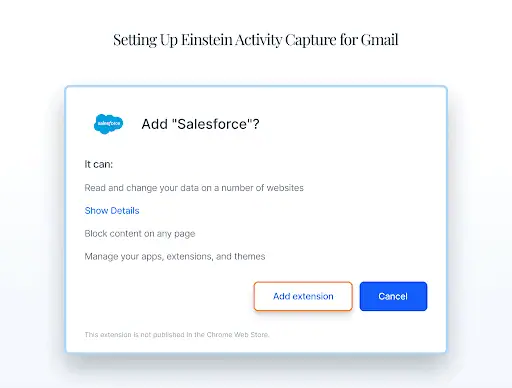
Caption: Get the Gmail integration
Step 3: Connect Gmail to Salesforce
Once the extension is installed, open Gmail and click the Salesforce icon in the right sidebar. A login prompt appears. Enter Salesforce credentials and authorize the connection via OAuth, a standard authorization protocol that lets the extension access Salesforce data while keeping your password private.
After authorization, the sidebar populates with any Salesforce records that match the email address in the current thread. An empty sidebar on a known contact usually points to an issue covered in the troubleshooting section.
Step 4: Configure Email Logging Preferences
Open the extension settings and decide how logging should behave. The main choices are whether reps log each email manually with a click, or whether they get prompted to log on every send.
Use the Relate To field to associate a logged email with a specific Salesforce record: Contact, Lead, Opportunity, Account, or a custom object. This is also the point where team-wide logging conventions start to matter. The rules for those live in the best practices section.
Step 5: Test the Integration
Send a test email to a known Contact or Lead in Salesforce. Log the email using the sidebar. Open the same record in Salesforce and check the Activity Timeline. The logged email should appear within a minute or two, with the correct subject, date, and body.
If it stays missing, run through the emails-not-logging fixes in the troubleshooting section before opening a support case.
The Chrome extension covers desktop use and manual logging, but most teams also need calendar sync and mobile support. That is where the Workspace Marketplace connector earns its place.
How to Set Up the Salesforce Connector for Gmail (Google Workspace Marketplace)
The Marketplace connector is the right choice when mobile sales reps, calendar sync, or centralized admin rollout matter. Setup is shorter than the Chrome extension flow, and it involves the Google side of the stack as well as Salesforce.
Installing from the Google Workspace Marketplace
Open the Google Workspace Marketplace and search for “Salesforce Connector for Gmail.” Click Install. Two paths are available: an individual install for a single user, or a domain install that a Google Workspace admin can deploy across the entire organization.
Domain install is the default recommendation for anything over 20 users. The admin authorizes the required permissions once (access to Gmail, Calendar, and Salesforce data), and the Salesforce connector for Gmail becomes available to every user without individual clicks.
Configuring Email and Calendar Sync
After installing, open the connector settings and configure two things: email sync scope and calendar sync direction.
For email, choose whether to sync all emails, only those with matching Salesforce contacts, or manually selected threads. For calendar, enable bi-directional sync so Google Calendar events appear as Salesforce Events and vice versa. This is the Salesforce Gmail sync behavior most teams actually want.
The important behavioral difference from the Chrome extension: the Marketplace connector runs server-side. It captures and syncs data even when the rep is on mobile, using another browser, or asleep. The Chrome extension only works when Gmail is open in Chrome on a desktop.
Enterprise Deployment via Google Admin Console
For deployments above roughly 50 Gmail users, install through the Google Admin console instead of handling individual Marketplace installs. Navigate to Apps → Google Workspace Marketplace apps, search for the Salesforce connector, and install it for the whole domain or a specific organizational unit.
📱 Mobile note Unlike the Chrome extension, the Marketplace connector supports the Gmail mobile app on iOS and Android. Field reps get the same integration experience on a phone as they do on a laptop.
This path also lets the admin set default sync settings for all users, which cuts the number of “how do I turn on calendar sync” tickets that follow every rollout. For organizations deploying the Salesforce app for Gmail to hundreds of reps, this is a multi-hour time saver and a cleaner audit trail.The Marketplace connector handles sync better than the Chrome extension, but it still leaves reps clicking things. Teams that want hands-off capture usually look at Einstein Activity Capture next, which is where the hardest trade-offs show up.
Setting Up Einstein Activity Capture for Gmail
EAC is the option most teams try first and the option with the most complex trade-off profile.
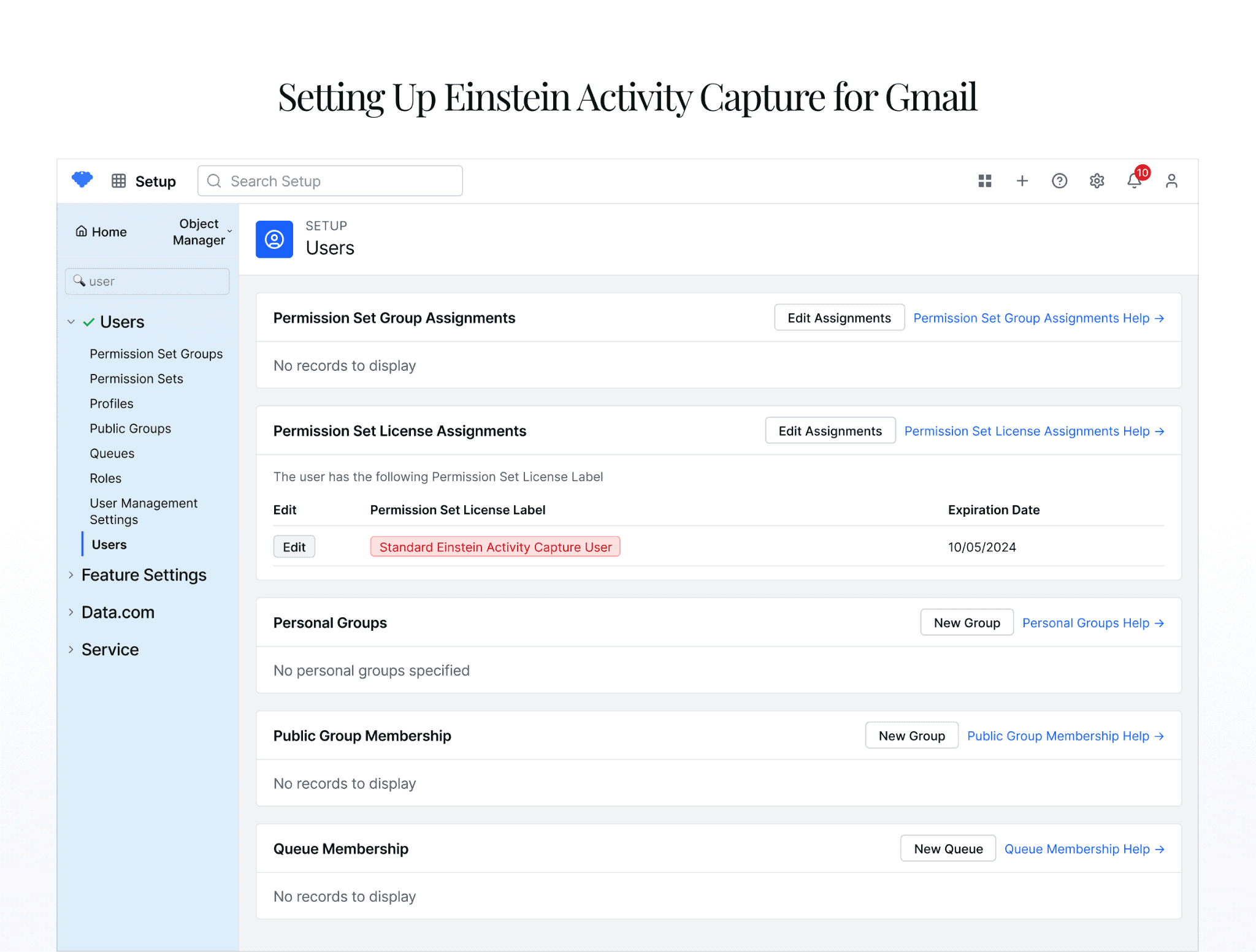
Caption: Einstein Activity Capture configuration screen in Salesforce Setup
- In Salesforce, go to Setup and search Einstein Activity Capture in Quick Find.
- Enable the feature at the org level.
- Create a permission set that includes EAC permissions and assign it to the sales users who should have capture enabled.
- Configure sync settings. Pick which users or profiles get EAC, set email sync direction (inbound, outbound, or both), and enable calendar sync.
- Have users connect their Gmail accounts via Settings → My Email Settings, or configure OAuth at the org level if Google Workspace is the identity provider.
What Einstein Activity Capture Does (and Where It Falls Short)
EAC does one thing very well. It automatically captures emails sent and received between Gmail and Salesforce, and it syncs Google Calendar events to Salesforce, with zero manual action from reps. For basic visibility into whether a conversation is happening at all, it works.
The limits are architectural, rather than bugs waiting to be patched. Here is the honest picture.
What EAC does well:
- Automatic email capture from Gmail to Salesforce with zero rep action
- Bi-directional Google Calendar event sync
- Zero ongoing maintenance for the rep
- Included in certain Salesforce edition bundles
Where EAC falls short:
- Captured data lives outside standard Task / Event records
- Captured activity stays out of standard Salesforce reports and dashboards
- Retention caps at roughly 24 months
- Captured data cannot trigger Process Builder, Flow, Apex, or workflow rules
- Custom object mapping is unsupported
- Cross-threaded deals with multiple reps get mapped inconsistently
- Third-party revenue intelligence or forecasting tools that read from Task / Event see nothing
Third-Party Gmail and Salesforce Integration Tools Worth Considering
Organizations outgrow native integration in a predictable way. Manual logging starts off “fine,” then breaks at 20+ reps. EAC looks automated until the first forecast review exposes the reporting gap. By 50 reps, the conversation shifts from “which native option” to “which platform gives us complete, reportable, compliant activity data.”
Two tools consistently come up in that conversation: Revenue Grid and Cirrus Insight. They solve different problems.
Revenue Grid
Revenue Grid is a Salesforce-native revenue intelligence platform whose data capture technology has been refined over more than a decade. For Gmail SFDC integration
specifically, it captures 100% of email and calendar interactions from Gmail and syncs them into Salesforce as standard, reportable Task and Event records.
That last point is the architectural difference from EAC. Because Revenue Grid writes to standard objects, the captured data shows up in every existing Salesforce report, every dashboard, every workflow, every forecast model, and every third-party tool that reads from Task or Event. Existing Salesforce infrastructure keeps working as designed.
Key capabilities:
- Intelligent record matching. An email CC’d to three colleagues on the same opportunity gets linked to the right Opportunity. It stays a single record instead of duplicating across three Contacts or going missing entirely. Cross-threaded and multi-rep deals are handled automatically.
- Works inside Gmail. Reps keep their existing workflow and tools. The integration lives inside the Gmail UI they already use all day, which is the single biggest driver of adoption rates above 90%.
- Enterprise-grade security. SOC 2 Type II, GDPR, and ISO 27001 compliance. Relevant for financial services, healthcare, and government contractors where data handling certifications are part of procurement.
- Same-day deployment. Revenue Grid rollouts are measured in hours, rather than the weeks typical of larger enterprise integration projects.
- Platform depth. Captured email data feeds into the Revenue Action Platform, delivering 360-degree pipeline visibility, AI-driven deal insights, and precision forecasting. The integration is the foundation. The intelligence layer is where ROI compounds.
Revenue Grid customers typically anchor the ROI case in three outcomes: reclaimed rep hours, forecast accuracy improvements from complete activity data, and faster onboarding for new hires who inherit clean account histories. Complete data changes how managers coach, how deals get inspected, and how forecasts get defended to the CFO.
| See it in action Revenue Grid captures 100% of Gmail and Salesforce interactions automatically, as standard, reportable Salesforce records. |
Cirrus Insight
Cirrus Insight offers a Gmail sidebar for Salesforce with email tracking, calendar sync, activity logging, email templates, follow-up reminders, meeting scheduling via Cirrus Insight Scheduler, and email open / click tracking.
It is a reasonable mid-tier option for teams that want more functionality than the native Chrome extension but whose needs center on individual rep productivity, rather than organization-wide data capture. Best suited for smaller teams of roughly 10 to 50 reps whose primary goal is making each rep more efficient in their inbox.
The scope difference versus Revenue Grid is worth naming directly. Cirrus Insight is optimized for the individual rep experience. Revenue Grid is optimized for capturing complete organizational data that serves the entire revenue team: reps, managers, RevOps, and finance. Both are legitimate. They solve different problems.
Even the right tool can underdeliver if setup issues go unresolved. The next section covers the handful of problems that generate most of the Slack messages to Salesforce Admins after a rollout.
Tips to Troubleshoot Common Gmail and Salesforce Integration Issues
Four issues generate most support tickets after a Salesforce-Gmail integration rollout, each fixable in under ten minutes.
- Emails Missing from Salesforce Records. Usually caused by email address mismatches (typos, aliases), the logging toggle being set to manual, an expired OAuth session, reps sending from personal Gmail instead of Workspace, or restrictive sharing rules. Fix by verifying address matches, checking logging settings, re-authenticating, confirming the correct account, and reviewing sharing rules.
- Chrome Extension Failing to Load. Typically due to stale cache, conflicting extensions, outdated Chrome, enterprise policy restrictions, or silent disabling after updates. Start by clearing cache, restarting Chrome, and re-authenticating before deeper troubleshooting.
- Calendar Events Failing to Sync. Common culprits include calendar sync being disabled (it’s separate from email sync), incorrect sync direction, restricted Calendar API access, recurring event limitations, or missing permission sets. Verify sync is enabled, check direction settings, confirm API access, and review permissions.
- Permission and Edition Errors. Often caused by unsupported Salesforce editions (Professional typically needs an add-on), missing user permissions, or unassigned permission sets. Check your edition in Setup → Company Information, review profiles, assign correct permissions, and have users re-login.
Best Practices for Maximizing Your Gmail and Salesforce Integration
Setup is easy; the real challenge is maintaining adoption above 90% by month three. Four practices make the difference.
- Drive User Adoption. Deploy the extension automatically via Google Admin console rather than relying on reps. Run a 15-minute training session (recorded for future hires), share a visual one-pager in team channels, and reference logged email activity during pipeline reviews, this makes logging feel non-optional. Counter the “no time” objection directly: logging takes two seconds versus five minutes of manual entry later.
- Establish Email Logging Conventions. Document what gets logged (all customer-facing or deal-related only), which objects to associate with (Contact, Opportunity, or both), notes formatting standards, and ownership rules. Store conventions in a shared wiki and review quarterly.
- Audit Data Quality Regularly. Run three key reports: emails logged per rep weekly, opportunities with no activity in 14 days, and monthly send-versus-logged gaps to measure missed-capture rates. Note that Einstein Activity Capture data falls outside standard reports.
- Combine with Pipeline Visibility Tools. Email capture is the foundation; the real ROI comes when captured data drives forecasts, deal inspections, and coaching. Platforms like Revenue Grid extend integration into full pipeline visibility and AI-driven insights.
Choosing the Right Gmail and Salesforce Integration for Your Team
The right Salesforce Gmail integration is the one that matches your team’s size, data needs, and compliance reality. The decision matrix below is the short version of everything above.
Decision matrix
|
Pick the tier that matches where the business actually operates, rather than where it operated two years ago. The wrong call here shows up in missed forecasts long before it shows up in the integration docs.
| Ready to see complete capture in action? Revenue Grid captures 100% of Gmail and Salesforce interactions automatically, as standard, reportable Salesforce records.
Zero manual logging. Zero data gaps. Zero retention limits. |
What are the benefits of integrating Salesforce with Gmail?
The top benefit is eliminating manual email logging, saving reps several hours weekly. It also ensures CRM data completeness, provides Salesforce context inside Gmail without tab switching, improves forecast accuracy through complete activity data, and prevents missed follow-ups, resulting in cleaner pipeline reports and better revenue decisions.
Can I sync both emails and calendar events?
Yes, but it depends on the method. The Chrome extension only supports manual email logging. The Salesforce Connector from Google Workspace Marketplace supports both email and bi-directional calendar sync. Einstein Activity Capture syncs both automatically, though captured data lives outside standard Salesforce records and reports.
What is Einstein Activity Capture, and what are its limitations?
Einstein Activity Capture automatically captures Gmail emails and calendar events with zero rep action. However, captured data lives outside standard records, is excluded from reports and dashboards, retains only 24 months, cannot trigger workflows or automation, and lacks cross-threaded deal mapping, making it insufficient for teams needing reportable, actionable data.
Which Salesforce editions support Gmail integration?
Gmail integration requires Enterprise, Performance, Unlimited, or Developer editions. Professional Edition offers partial Chrome extension functionality with limitations. Einstein Activity Capture requires specific licenses included in Sales Cloud Einstein, Unlimited, and Performance editions. Always verify compatibility in Setup → Company Information before starting, and contact Salesforce about add-ons for Professional Edition.
How do I fix emails failing to log to Salesforce?
The most common cause is email address mismatches: check for typos, aliases, or domain differences. Also confirm the logging toggle is enabled, clear Chrome cache, re-authenticate the extension, verify the correct Workspace account is connected, and check user permissions. For Einstein Activity Capture, check the Activity Timeline, not standard Activity History.